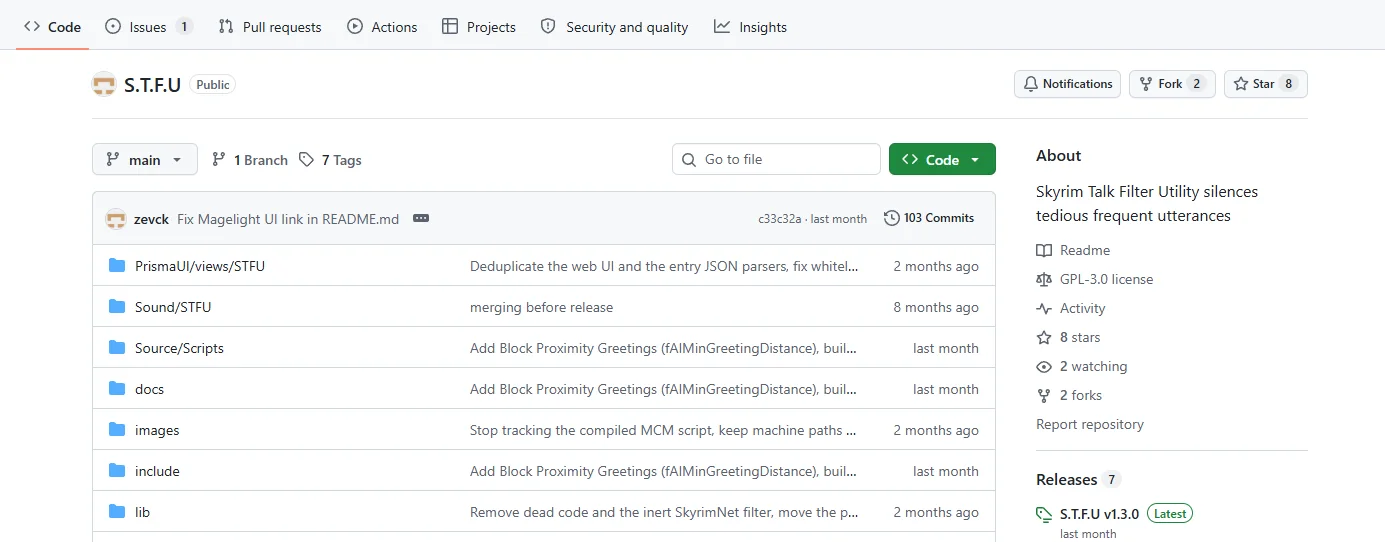


















































S.T.F.U - Skyrim Talk Filter Utility
Skyrim Talk Filter Utility gives you full control over what dialogue you hear in game. You can use the UI to view all recent dialogue and add it to the blacklist. S.T.F.U also ships with options for pre-configured blocking categories.
📋 Requirements
- Skyrim Special Edition or Skyrim VR
- SKSE64
- Address Library for SKSE Plugins
- powerofthree's Tweaks (restores EditorIDs on AE)
- PrismaUI or Magelight UI (for the in-game interface)
Install it like any other mod.
❓How It Works
S.T.F.U runs silently in the background and checks every line of dialogue before it plays. If a line matches your configured rules, it either silences it or blocks it entirely. There are two ways to block dialogue:
Soft Block (recommended)
The audio is silenced and subtitles are hidden, but everything else continues normally. Quest scripts run, follower commands work, conversation flags get set — the game doesn't know anything was blocked. The NPC simply says nothing.
Hard Block
The dialogue or scene is stopped from running at all. Scripts do not execute. Only use this for purely ambient scenes (like bard songs) that have no quest or script involvement — applying a hard block to the wrong thing can break quests.
🙊 What You Can Block
Individual topics: silence a specific line or set of lines, identified by name or ID.
Scenes: stop an entire scene sequence. Bard performances, inn conversations, ambient banter. Blocked by injecting conditions at runtime with no ESP edits required.
Quests: block all dialogue from a specific quest at once. Useful for silencing entire systems like follower management mods.
Subtypes: the broadest option. Every line of dialogue in Skyrim has a subtype: Hello, Idle, Attack, Hit, Taunt, etc. Toggling a subtype off silences thousands of lines at once. See DIALOGUE_SUBTYPES.md for the full list.
Proximity greetings: stop NPCs greeting you as you walk past. Unlike silencing the Hello subtype, they don't stop or turn to face you either, and greetings when you talk to them still play. A master toggle in the menu and the MCM.
Whitelist: mark topics, scenes, quests, or plugins as protected so they are never blocked, even if they match a blacklist rule. Use this to punch exceptions through broad filters.
📊 In-Game Interface
Open the S.T.F.U menu with the Insert key (configurable in the MCM). Requires PrismaUI or Magelight UI. With both installed STFU uses Magelight UI; add UIHost=prismaui under [Settings] in SKSE/Plugins/STFU/config/STFU_Config.ini to use PrismaUI instead.
History Tab
A live, searchable log of every line of dialogue that has played recently — who said it, what quest it belongs to, what subtype it is, and whether it was blocked. Click any entry to open a detail panel where you can immediately add it to your blacklist or whitelist, set the blocking mode, and configure actor/faction filters. This is the fastest way to silence something you just heard in-game.
Blacklist Tab
The full list of everything currently being blocked. Browse, search, and edit existing entries. Click any entry to change its blocking mode, restrict it to specific actors or factions, or remove it entirely. Supports multi-selection with Ctrl+Click and Shift+Click for bulk edits.
Whitelist Tab
The full list of everything that is protected from being blocked. Same editing controls as the blacklist tab.
Settings Tab
- Enable Blacklist Filter: master on/off for all blacklist rules
- Block Ambient Scenes: toggle the built-in ambient scene blocking
- Block Bard Songs: toggle bard performance blocking
- Block Proximity Greetings: NPCs no longer greet you as you walk past
- Subtype toggles: enable or disable each dialogue subtype individually, with Enable All / Disable All per category
- Hotkey: click to rebind the menu key
- Import Scenes: restore the default set of blocked scenes and bard songs
- Import from YAML: apply changes made to your YAML config files (see below)
Actor and Faction Filtering
Any blacklist or whitelist entry can be scoped to specific actors or factions. For example: silence a specific topic only when spoken by a particular NPC, or protect a topic only when the speaker belongs to a certain faction.
📝 Configuring Without the UI
Topics, scenes, and quests can be added to your blacklist and whitelist through plain text YAML files. Useful for sharing configs, batch-adding entries, or setting things up before launching the game. Actor and faction filtering requires the in-game UI.
Where Are the Files?
On first load, S.T.F.U generates blank template files at:
SKSE/Plugins/STFU/import/
├── STFU_Blacklist.yaml
├── STFU_Whitelist.yaml
└── STFU_SubtypeOverrides.yaml
Using the Dialogue Log
S.T.F.U logs every intercepted line to:
SKSE/Plugins/STFU/STFU_DialogueLog.txt
Each entry shows the topic's EditorID or FormKey, the speaker, and what happened to it. You can copy entries directly into your YAML files.
[14:01:34] [ALLOWED] [Hello] [DialogueWhiterun] [02707A] Nazeem: Do you get to the Cloud District very often? Oh, what am I saying - of course you don't.
  - 02707A  <--- Copy this
YAML Format
Add entries by EditorID (preferred) or FormKey:
topics:
  - WICastMagicNonHostileSpellStealthTopic
  - 0x012345:SomeMod.esp

scenes:
  - WhiterunMikaelSongScene

quests:
  - nwsFollowerController
Use quotes for any identifier containing YAML special characters ([, ], {, }, :, #, etc.).
After editing a YAML file, use Import from YAML in the Settings tab or MCM to apply your changes — no restart required.
STFU_SubtypeOverrides.yaml
If a topic is miscategorized (assigned the wrong subtype by the game), you can manually correct it here. You can also use this to add blacklisted topics to specific filter categories.
overrides:
  DLC2PillarBlockingTopic: Idle
[!NOTE] After editing YAMLs you need to click "Import from YAML" in the settings tab or MCM. No need to restart the game.
🛠️ Building from Source
STFU has two parts: the SKSE plugin (C++, at the repository root) and the in-game menu (React, in web-ui/).
Prerequisites
- Visual Studio 2026 with the "Desktop development with C++" workload (the CMake preset uses the Visual Studio 18 generator)
- CMake 3.21 or newer
- vcpkg installed at
C:/vcpkg(the path is set inCMakePresets.json; edit it if yours is elsewhere) - Node.js and npm, for the menu
Clone
The repository uses git submodules for its dependencies (Detours and CommonLibSSE-NG, which has a nested submodule of its own). Clone recursively:
git clone --recursive https://github.com/zevck/S.T.F.U.git
If you already cloned without --recursive:
git submodule update --init --recursive
Plugin
From the repository root:
cmake --preset vs2022-windows
cmake --build build --config Release --target STFU
vcpkg installs the dependencies (yaml-cpp, SQLite, and CommonLib's own) on the first configure. The plugin is written to build/Release/STFU.dll; copy it to SKSE/Plugins/STFU.dll.
Menu
cd web-ui
npm install
npm run build
Copy the contents of web-ui/dist/ (index.html and assets/) to PrismaUI/views/STFU/.
ESP
STFU.esp is built from its Spriggit source in spriggit/STFU (it is not committed): Build_Local.ps1 writes build/esp/STFU.esp, or run Spriggit's CLI yourself with convert-to-plugin -i spriggit/STFU -o STFU.esp. See docs/DEVELOPMENT.md.
MCM script
Compile Source/Scripts/STFU_MCM.psc with the Papyrus compiler (it needs the SkyUI SDK script sources) and place the result at Scripts/STFU_MCM.pex.
🔑 License
STFU is released under the GNU General Public License v3.0 or later (GPL-3.0-or-later). See LICENSE.md for the full text.
Install
Install it with the Modhold app, or add the zip to MO2 as a new mod and tick it. SKSE plugins need SKSE64 and, for most, Address Library for SKSE Plugins.