


RTS Camera
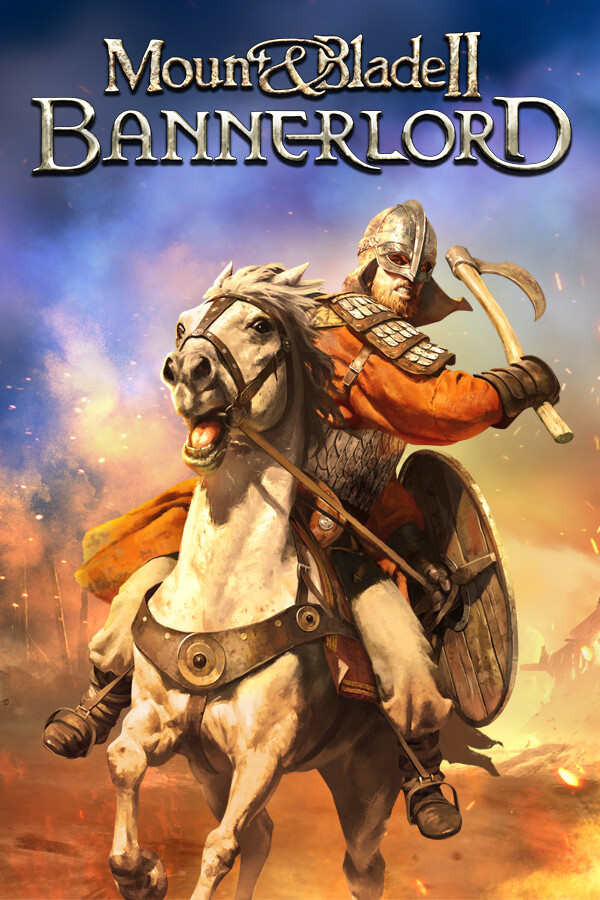
A mod for Mount&Blade II Bannerlord that provides free camera and better commanding in battle.

DLC Compatibility
This mod does not read or write stuffs to your game save. Installing or removing this mod has no impact on your game save.
Mod Compatibility
This mod is composed of 2 parts, each of which can be enabled independently.
[/list]
Main Usage
In a battle, you can press L to open mod menu.
Details
Command System
You can config hotkeys by pressing `L` to open menu, and click `Config Key`.
Here is a list of default hotkeys:
RTS Camera:
War Sails Related
[img width=500]https://staticdelivery.nexusmods.com/mods/3174/images/355/355-1764397981-1774213030.png[/img]
Configuration
Troubleshoot
Platform Compatibility
Credits
LiZhenhuan1019, Lkoinw, Norbivar
Links
Steam workshop:
v1.2.12:
RTS Camera: https://steamcommunity.com/workshop/filedetails/?id=2879991660
RTS Command: https://steamcommunity.com/workshop/filedetails/?id=2879991827
v1.3.x:
RTS Camera: https://steamcommunity.com/sharedfiles/filedetails/?id=3596692403
RTS Command: https://steamcommunity.com/sharedfiles/filedetails/?id=3596693285
v1.4.x:
RTS Camera: https://steamcommunity.com/sharedfiles/filedetails/?id=3747725551
RTS Command: https://steamcommunity.com/sharedfiles/filedetails/?id=3747771970
You can get the source code at github.com.
Donate
Buy me a coffee at: https://ko-fi.com/lizhenhuan1019 or: https://ifdian.net/a/lizhenhuan1019
Contact with me
A mod for Mount&Blade II Bannerlord that provides free camera and better commanding in battle.
DLC Compatibility
- War Sails
[list] - Doesn't required War Sails.
- Compatible if you have War Sails.
This mod does not read or write stuffs to your game save. Installing or removing this mod has no impact on your game save.
Mod Compatibility
- Performance issue with TOAM (Tales from the Age of Men) is fixed in v5.4.13.
- Crash in The Old Realms is FIXED in v5.1.7.
- If you use Realm of Thrones, please move RTS Camera above Realm of Thrones, or "text with id xxxxx does't exist" will show up.
- If you use BattleMiniMap, please make sure it's above v2.0.0.
- If you use Improved Combat AI, please make sure it's above v3.0.0.
- As for RTS CAMERA 1.2.8 - 1.2.12, it's a version updated by other modder to work with latest game when I'm AFK. Since I'm back and add a lot of bug fixes and features, you don't need that anymore.
- Helmsman: You don't need it if you use RTS Camera. In RTS Camera you can use F5 to toggle soldier piloting, exactly the same as Helmsman, and you will get better integration with camera related features. However, if you still use Helmsman, RTS Camera will not add F5 command for the first ship to avoid conflict and weird behavior.
This mod is composed of 2 parts, each of which can be enabled independently.
- RTS Camera
[list] - Automatically elevates camera when giving orders. (Height scrollable. Added in v5.4.2, can be turned off in menu by pressing L in battle.)

- Smoothly toggle free camera mode at any time in a battle.

- Stick camera to selected formation.
- (Optional) Control one of your soldiers and continue fighting/commanding after player character is injured in battle.

- Adjust combat time speed. Auto fast forward in hideout.
- RTS Camera Command System (briefly RTS Command)
- Reworked the command system in the base game.
- Order position marker becomes more visible.
- Set attack target without interrupting previous movement orders. For example, let your archers focus shooting while holding position.
- You can click on siege weapons to make your troops stop using it.

- Add volley order (for v1.3.x and above).

- Troops with throwing weapons will correctly keep distance under engage order (for v1.3.x only).

- Allows to add order to queue to let troops execute orders one by one. For example, move along a given path and then shooting/charging.

- When giving orders to multiple formations:
[list] - Relative positions/directions of selected formations are locked in moving order and turning order.
- Layout between selected formations is improved when player drags on the ground.


- Square and Circle formations are improved.
- Fix issues related with formation width and unit spacing in the base game.
- Fix the issue in the base game that engage order for ranged troops may cause the game freeze.
- Facing to enemy order now has an optional enemy formation target.
- Enable Hollow Square Formation for player:
- [img width=500]https://staticdelivery.nexusmods.com/mods/3174/images/355/355-1755338851-1902842535.jpg[/img]
- (Disabled by default) Add an order "Defensive Hold" to keep troops under defensive formation (shield wall, circle, square) holding positions and shields.
[/list]
Main Usage
In a battle, you can press L to open mod menu.
- RTS Camera
[list] - Camera will be elevated when giving orders. Scroll mouse to zoom in/out.
- You can press F10 to toggle free camera.
- In free camera mode, while command UI is open, you can press E to stick camera to selected formation.
- After your character is killed in battle, you can press E to follow one of your soldiers and press E again to control it and continue fighting.
- Command System
- Volley order:
[list] - Auto Volley: Press F3 F6 (if using legacy order layout, F8 F1) or H key. Soldiers will aim and wait for others and fire when most soldiers are ready.
- Manual Volley: Press F3 F7 (if using legacy order layout, F8 F2) or J key. soldiers will aim and wait for your orders to fire.
- Volley Fire: Press F3 F8 (if using legacy order layout, F8 F3) or K key. Let soldiers in manual volley to fire.
- Hold Shift and give orders to add orders to queue. Your troops will execute them one by one.
- If you move/turn multiple formations at the same time, their relative positions/directions will be locked.
- If you give move order by dragging on the ground, formations will be placed better than they are in the base game.
- Hold Ctrl while dragging on the ground, formations' widths and relative positions will be locked.
- Hold Alt to disable the locking behavior described above.
- You can make your formation charge to the enemy formation by clicking middle mouse button on enemy units.
- Press Alt while clicking to target the enemy without interrupting previous movement orders. For example, let your archers focus shooting while holding position.
- You can select your formations by clicking middle mouse button on soldiers.
- For more features, you can read Details below or press L to open mod menu.
- Copy the RTSCamera and RTSCamera.CommandSystem folder that you downloaded into the Bannerlord Modules folder. Remove the old folders first if they already exist.
- Unblock all the dlls at (GamePath)\Modules\RTSCamera\bin\Win64_Shipping_Client and (GamePath)\Modules\RTSCamera.CommandSystem\bin\Win64_Shipping_Client:
[list] - Right click on each dll, click Properties and check "Unblock".
- Or: go to (GamePath)\Modules, right click, open Powershell, and then run:
gci -Recurse RTSCamera*/*.dll | Unblock-File
- Enable both “RTS Camera” and “RTS Camera Command System” in launcher.
Details
- In a battle, press L to open detailed menu of this mod.
[list] - Switch between options of RTS Camera or Command System by clicking tab list on the left of the menu.
- You can close the menu by pressing esc, left clicking outside the menu or right clicking anywhere.
- Elevated camera when giving orders can be disabled by pressing L and then set Camera Mode on Ordering (in Miscellaneous Options section) to Original.
- Press F10 to toggle free camera. Player character will be controlled by AI when switched to free camera.
[list] - If it shows “can’t give orders in this moment”, press E twice to control a unit, then you can continue to issue orders.
- Order UI will be opened automatically.
- You can enable Switch Camera on Ordering option, to always give orders in free camera.
- When command UI is open in free camera mode, you can press E to stick camera to selected formation.
- You can enable Slow Motion On RTS view, to turn on slow motion in free camera.
- Controls in free camera:
[list] - Use W, A, S, D, Space, Z and mouse scrolling to move the camera.
- Use shift to speed up camera movement.
- Move your mouse to rotate the camera, or when order panel is opened, drag right mouse button to rotate the camera.
- Left click on the ground and drag to change the position, direction and width of the formation you selected.
- Hold ctrl when dragging to arrange multiple formations vertically.
- Hold ctrl and press Up/Down to adjust camera movement speed.
- Hold ctrl and click middle mouse button to reset camera movement speed.
- Hold ctrl and drag middle mouse button move the camera by mouse.
- After your character is killed in battle, you can press E to follow one of your soldiers and press E again to control it and continue fighting.
- You can immediately control one of your soldiers to avoid all your formations been delegated to AI when your character dies, by setting When To Control Ally After Death option to "Always".
- Soldiers in the same formation as player character will be considered first when deciding which soldier to control.
- You can enable "Control Hero Only" and "Control Troops In Player Party Only", so that you will only control companions.
- When the camera is following a character, you can press E to control the character. You can make the camera follow a character in the following ways:
- In free camera mode press E to follow the player character.
- Press L to open the menu and selecting a hero in Watch Another Hero drop-down list.
- Press ; and click a character, then pressing E.
- Press left/right mouse button to change the character that the camera is following.
- If your character is injured in campaign map and you encounter an enemy party, you can still choose Command the battle option to begin the battle. In this battle you can command your troops in free camera but cannot directly control a character and fighting.
- Camera distance to player character can be limited by enabling Limit Camera Distance option.
- Distance limit is determined by scouting and tactics level.
- After Limit Camera Distance is enabled, using free camera and ordering in free camera can improve scouting and tactics skill level.
Command System
- Hold Shift when giving orders to add the order to queue. Your troops will execute orders in queue one by one.
[list] - If you give order to multiple formations, they will wait for the others to complete the order before executing the next one.
- Order queue will be cleared if you give new orders without holding Shift.
- Movement targets in queue will be marked as flags.
- In free camera mode, movement paths will be marked using arrows.
- If you move/turn multiple formations at the same time, their relative positions/directions will be locked.
- If you give move order by dragging on the ground, formations will be placed better than they are in the base game.
- Hold Ctrl while dragging on the ground, formations relative positions and widths will be locked.
- If you don't want the locking behavior described above, hold Alt and the behavior will be reverted to original.
- Improved square and circle formation:
- When switching between square/circle formation and other formations, the unit count in the outside rank is kept the same as the unit count of the first rank of line/shield wall/loose formation if possible.
- This allows soldiers to form formations more quickly and avoids them crowding together.


- In the base game when the unit count in square formation is square number, the center unit is not correctly placed. This is fixed in RTS.
- Player can use hollow square formation. Not enabled for AI.
- When formation is switched to circle formation, the circle formation will be tighter. This can be changed in option.
- Fixed the following issues in the base game:
- Issue: If you switch to circle formation and back to line formation, formation width becomes much longer as it should be.
- Issue: If you drag on the ground to lower the formation width and unit spacing, and in the next order move the formation, the unit spacing in preview is inconsistent with the actual order given.
- Issue: If you place the formation to a narrow place by clicking on the ground, and in the next order move it back, the formation width is not recovered. In this mod the formation width is changed only when you drag on the ground.
- Issue: (Especially to circle/square formation) If you drag on the ground to set the formation width to minimum, press `F1` and place the order flag next to a wall without actually giving orders, the frame rate will drop dramatically.
- Issue: If you try to give order to attack the gate in siege, it may results in a order attacking the enemy formation behind the gate.
- You can make your formation charge to the enemy formation by clicking middle mouse button on enemy units.
- After the enemy formation is eliminated, your troops will stay at where they are. To change this behavior, you can press L to open menu, and set the option After enemy formation eliminated to Charge.
- The target enemy formation that your selected troops are charging to will be highlighted with red color when you open command panel in free camera mode.
- Hold Alt while clicking to target the enemy without interrupting previous movement orders.
- For archers they can shoot target enemy while holding positions.
- Note that for melee units, they will still follow previous movement orders, which may limit their ability to reach the target.
- Place your mouse on the enemy formation marker and giving facing to enemy order. You formation will facing to the selected enemy formation only.
- Order position marker is more visible. The original marker is hard to see if camera is too high.
- You can select your formations by clicking middle mouse button on soldiers.
- Selected troops will be highlighted with green color when you open command panel in free camera mode.
- Your formation targeted by the enemy formation will be highlighted with dark blue color when you open command panel in free camera mode.
- Movement orders will be shown under troop cards.
- Player can use hollow square formation. Not enabled for AI.
- New: Fix direction of units at the corner of square formation.
- Before fix:
- [img width=500]https://staticdelivery.nexusmods.com/mods/3174/images/355/355-1755337935-1696969219.jpg[/img]
- After fix:
- [img width=500]https://staticdelivery.nexusmods.com/mods/3174/images/355/355-1755337927-1820755240.jpg[/img]
You can config hotkeys by pressing `L` to open menu, and click `Config Key`.
Here is a list of default hotkeys:
RTS Camera:
- L: to open mod menu.
- F10: Toggle free camera
- E: Focus on troop/formation; Control troop.
- ; : Select character.
- w, A, S, D: Camera movement.
- Space, Z: Camera up/down.
- Right Shift + =, Right Shift + -: Increase/Decrease camera distance limit.
- Middle Mouse Button: Select formation.
- Left Alt or Right Alt: Keep movement order when attacking the enemy formation; Toggle formation lock behavior.
- Left Shift or Right Shift: Add command to queue.
- Left Ctrl or Right Ctrl: Keep formation width when dragging.
- H: Auto volley.
- J: Manual volley.
- K: Volley fire.
War Sails Related
- When switch to free camera mode, AI will control your character and pilot player ship. You can give ship orders to player ship, such as Engage, Skirmish, etc.
- When player ship is piloted by AI, selecting all formations will no longer exclude the playe ship, so that it will be easier to give orders like "all ships attack!".
- When player is injured and switched to another soldier on the other ship, ship orders will be updated accordingly so that you can give ship orders to the old ship (engage, skirmish, etc.) and troop orders to the new ship (defend ship, charge, etc.).
- When you are controlling your character and not piloting your ship, a new order (with hotkey F5) to toggle soldier piloting your ship will be added. This is the same as the Helmsman mod.
[list] - To avoid conflict and weird behavior, when RTS Camera detects Helmsman is installed, it will not add the new order for the first ship.
- For the other ships, Helmsman doesn't take effect, so RTS Camera will add the new order for them.
- Note that in this case, as of Helmsman v1.0.0, using Helmsman to toggle controller of the first ship when you are piloting other ships may cause your player character stops piloting.
[img width=500]https://staticdelivery.nexusmods.com/mods/3174/images/355/355-1764397981-1774213030.png[/img]
Configuration
- The configuration files are saved in directory (user directory)\Documents\Mount and Blade II Bannerlord\Configs\RTSCamera\ and (user directory)\Documents\Mount and Blade II Bannerlord\Configs\MissionLibrary\.
[list] - The main config is saved in file RTSCameraConfig.xml and CommandSystemConfig.xml.
- The hot key config is saved in file RTSCameraGameKeyConfig.xml and CommandSystemGameKeyConfig.
- The hot key that opens the menu is saved in file (user directory)\Documents\Mount and Blade II Bannerlord\Configs\MissionLibrary\GeneralGameKeyConfig.xml.
- You can modify them manually, but if you edit them incorrectly or remove them, the configuration will be reset to default.
Troubleshoot
- If it shows "Cannot load ..\..\Modules\RTSCamera\bin\Win64_Shipping_Client\RTSCamera.dll", please go to this page to unbock the dll.
- If the game crashed:
[list] - If you just upgraded this mod, please remove mod files and reinstall.
- If you are using Steam, try to validate game files.
- Try to remove shader cache by deleting folder C:\ProgramData\Mount and Blade II Bannerlord\Shaders.
- You can share crash report using BetterExceptionWindow or BLSE.
- If the above not working, for example when both BetterExceptionWindow and BLSE are not updated for latest game version, I would appreciate it if you send dump file to me to help me to solve the crash by following steps:
[list] - Click Yes when the game crashes and ask whether to collect information.
- Before sending files to TaleWorlds, go to C:\ProgramData\Mount and Blade II Bannerlord\crashes(Not the game installation path) and find the folder related to the crash by timestamp.
- Then send dump.dmp file in the folder (or just send the whole folder) to me. See below for my email address.
- If you forget the hotkey set for opening menu:
- you can remove the config file so that config will be reset to default.
- If there're a lot of "text with id xxxxx doesn't exist",
- If you enabled Realm of Thrones, please move RTS Camera above it. As version 6.2 of Realm of Thrones, there's bug in its file that causes all the mods below it cannot load text correctly.
- If the command UI shows empty command icon, and troop card is not shown, it's because that you didn't remove the old mod files before updating the mod. Please remove the old mod files and reinstall.
Platform Compatibility
- Steam on Windows: supported
- Steam on Linux: supported
- Epic: suppported
- Xbox on PC: Requires Harmony to work (not guaranteed).
- Formation Filter: Better way to assign troops to formations at deployment stage.
- Enhanced Battle Test: (Outdated) Provides more powerful custom battle. It allows you to choose almost all singleplayer troops and multiplayer troops.
- Battle Mini Map: Provides a mini map in battle.
- Cinematic Camera: Allows adjusting Field of View, Depth of Field, etc. for making film.
Credits
LiZhenhuan1019, Lkoinw, Norbivar
Links
Steam workshop:
v1.2.12:
RTS Camera: https://steamcommunity.com/workshop/filedetails/?id=2879991660
RTS Command: https://steamcommunity.com/workshop/filedetails/?id=2879991827
v1.3.x:
RTS Camera: https://steamcommunity.com/sharedfiles/filedetails/?id=3596692403
RTS Command: https://steamcommunity.com/sharedfiles/filedetails/?id=3596693285
v1.4.x:
RTS Camera: https://steamcommunity.com/sharedfiles/filedetails/?id=3747725551
RTS Command: https://steamcommunity.com/sharedfiles/filedetails/?id=3747771970
You can get the source code at github.com.
Donate
Buy me a coffee at: https://ko-fi.com/lizhenhuan1019 or: https://ifdian.net/a/lizhenhuan1019
Contact with me
- Email:
[list] - [email protected]
- [email protected]