











































Mojave Desktop Radio
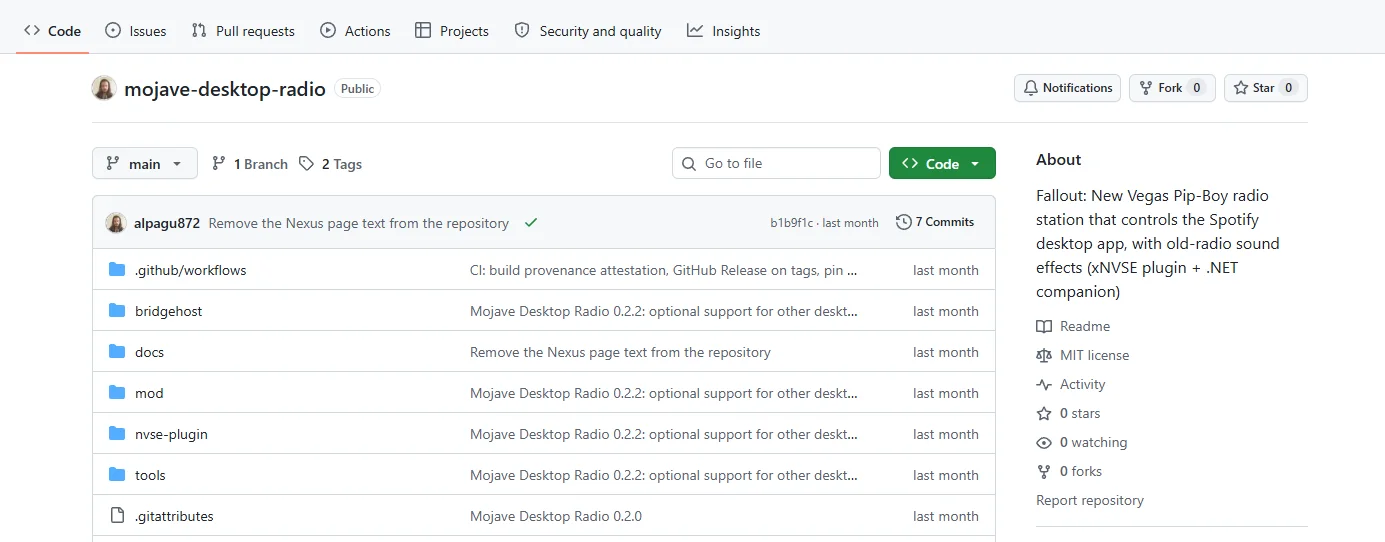
Adds the radio station Mojave Desktop Radio to the Pip-Boy. Tune in and the Spotify desktop app running on your PC starts playing. Pause, skip and see the current artist/title right in the Pip-Boy, and optionally give the music an old-radio sound (Clean / Mojave / Wasteland / Damaged).
- No downloading, recording or DRM tricks: control goes through Windows' media controls (the same thing your keyboard media keys use), the sound effect is applied live in memory.
- One tiny ESP (3 records, overrides nothing) — safe to add to and remove from an existing save.
- No vanilla or UI-mod files are replaced (the Pip-Boy panel is injected with UIO).
- No keys are bound by default.
Türkçe: README_TR.md
Requirements
| Game | Fallout: New Vegas 1.4.0.525 (Steam/GOG) — TTW untested |
| Script extenders | xNVSE 6.3+, JIP LN NVSE, ShowOff xNVSE |
| UI | UIO – User Interface Organizer |
| Settings menu | The Mod Configuration Menu + MCM Extender (optional, for the in-game settings page) |
| Desktop | Windows 10 21H2+ or 11, .NET 8 Desktop Runtime (x64), Spotify desktop app |
| Radio FX (optional) | an output device nobody listens to: VB-CABLE (free, recommended) or Steam Streaming Speakers (installed with Steam) |
Without a virtual device everything works except the sound effect (Spotify plays "Clean").
Installation
Mod Organizer 2 / Vortex: install MojaveDesktopRadio-.zip like any other mod, enable it
and make sure MojaveDesktopRadio.esp is active. Load order position does not matter.
Manual: extract the archive into Fallout New Vegas\Data.
Then:
- Open Spotify and play any track once (Spotify registers with Windows only after its first playback), pause it again if you like.
- Start the game through NVSE and load a save. The BridgeHost (a small tray app, green radio icon) starts by itself and closes a few seconds after you quit the game.
- Pip-Boy → DATA → RADIO → Mojave Desktop Radio.
More detail, Vortex notes and how to install VB-CABLE: docs/INSTALL.md.
Using it
While the station is tuned, the right side of the Radio tab shows:
MOJAVE DESKTOP RADIO
SIGNAL: CONNECTED
STATUS: PLAYING
ARTIST: …
TRACK : …
FX MODE: MOJAVE RADIO
> PAUSE
> NEXT TRACK
> PREVIOUS TRACK
> CHANGE FX MODE
- Click the entries with the mouse. Gamepads cannot select the panel; assign hotkeys in MCM instead.
- Tune another station or switch the radio off → Spotify pauses (or is muted, see MCM). The game radio and Spotify never play at the same time.
- Every text can be changed/translated in
Data\NVSE\Plugins\MojaveDesktopRadio.ini→[Text].
Radio FX presets
| Preset | Sound |
|---|---|
| Clean | untouched, no audio routing at all |
| Mojave Radio | 280 Hz – 3.3 kHz, narrow stereo, light compression and warmth |
| Wasteland Radio | narrower, mono, light hiss and crackle, short tuning sweep when tuning in |
| Damaged Radio | weak signal: fading, short dropouts and drift — still intelligible |
How it works: while the station is tuned, Spotify's output is moved to the inaudible device, the BridgeHost captures it there, applies the preset and plays it on your normal speakers/headset. Fallout's own sounds never pass through it. When you leave the station or quit the game, Spotify is put back on "Default" — also after a crash (on the next start).
MCM (Mod Configuration Menu → Mojave Desktop Radio)
- Radio FX: on/off, preset, volume, static intensity, saturation, custom tone (low-pass, high-pass, stereo width), fade duration, tuning static.
- Behaviour: pause or mute when the station is left, auto-play, pause-menu behaviour, track messages.
- Hotkeys: play/pause, next, previous, cycle FX — all unassigned by default; scope Pip-Boy only or anywhere.
- Desktop Player (optional): Spotify by default — see Other music players.
Other music players (optional)
Spotify users can skip this — nothing has to be set.
The station can control one other desktop player instead of Spotify:
MCM → Mojave Desktop Radio → Desktop Player → foobar2000, MusicBee, AIMP, WACUP / Winamp or
Custom. Without the game, the same choice is in the tray icon menu → Desktop player. Only the
selected player is ever controlled; the Pip-Boy names it (e.g. STATUS: FOOBAR2000 NOT RUNNING).
These players are not tested by the author. A player works only if it publishes Windows media
controls — play a song in it and press a volume key: the Windows media overlay must show the player
with title and buttons. Whether it does depends on the player, its version and its settings (some need
an option or plugin for "Windows media controls" / "SMTC"). To see what Windows reports, run
Data\MojaveDesktopRadio\BridgeHost\mdr.exe players while it plays:
* spotify     Spotify          running=yes  session=Spotify.exe
  foobar2000  foobar2000       running=yes  session=foobar2000.exe  (untested)
running=yes with session=- while music plays = the player does not publish media controls; it
cannot be supported. Radio FX, fades and auto-pause work the same as with Spotify (per process).
Custom — for a player that is not listed, or when the names differ: close the game and the
BridgeHost, then edit %LOCALAPPDATA%\MojaveDesktopRadio\settings.json:
"player": "custom",
"customPlayerName": "MyPlayer",
"sessionMatch": [ "MyPlayer" ],
"audioProcessNames": [ "MyPlayer" ],
sessionMatch = part of the session name shown by mdr players, audioProcessNames = the program's
.exe name without .exe. Then choose MCM → Desktop Player → Custom (settings.json).
(Settings files from 0.2.1 or older with edited lists are treated as Custom automatically — choose
Custom in MCM to keep them.)
Compatibility
Tested with Vanilla UI Plus, yUI/ySI, Pip-Boy 2000 Mk VI, Now Playing, New Vegas Reloaded and the
Turkish translation. It replaces no files, so other UI mods using UIO should be fine. Not tested with
DarNified UI. Do not merge MojaveDesktopRadio.esp into a merged patch (the scripts look it up by name).
Uninstall
Right-click the tray icon → Exit (restores audio routing), then disable/remove the mod.
Saves are not affected. Settings and logs live in %LOCALAPPDATA%\MojaveDesktopRadio (safe to delete).
Problems?
See docs/TROUBLESHOOTING.md. Logs:
\MojaveDesktopRadio.log and %LOCALAPPDATA%\MojaveDesktopRadio\logs\bridgehost.log.
The command-line tool Data\MojaveDesktopRadio\BridgeHost\mdr.exe status shows what the BridgeHost sees.
About Spotify
Mojave Desktop Radio does not use Spotify's servers, APIs or account data and never stores audio. The Radio FX processes the sound your PC is already playing, in real time, like an equalizer. Whether that is allowed by Spotify's terms for your account is your decision — the Clean preset or Radio FX: Off leaves the sound completely untouched. The FX also works with any other program you route to the virtual device (e.g. a local music player), and the station can control another player instead (see Other music players).
License and source
MIT — see LICENSE. Source: https://github.com/alpagu872/mojave-desktop-radio.
Release archives are built by GitHub Actions from this source (build.yml)
and carry a signed build-provenance attestation — verify a download with
gh attestation verify MojaveDesktopRadio-.zip --repo alpagu872/mojave-desktop-radio.
MojaveDesktopRadio\Docs\SHA256SUMS.txt lists the hash of every file in the archive.
The executables are not code-signed, so a few antivirus engines may report a generic "suspicious" verdict.
For developers
Source layout, build commands and the IPC protocol: docs/BUILD.md, docs/ARCHITECTURE.md, docs/PROTOCOL.md, release checklist: docs/TESTING.md. Third-party notices: THIRD_PARTY_NOTICES.md.
Install
Install it with the Modhold app or your mod manager. xNVSE plugins need xNVSE (New Vegas Script Extender) installed first.
Licence
This mod is shared here under its authors' MIT licence. Its full text:
MIT License

Copyright (c) 2026 Alpagu E

Permission is hereby granted, free of charge, to any person obtaining a copy
of this software and associated documentation files (the "Software"), to deal
in the Software without restriction, including without limitation the rights
to use, copy, modify, merge, publish, distribute, sublicense, and/or sell
copies of the Software, and to permit persons to whom the Software is
furnished to do so, subject to the following conditions:

The above copyright notice and this permission notice shall be included in all
copies or substantial portions of the Software.

THE SOFTWARE IS PROVIDED "AS IS", WITHOUT WARRANTY OF ANY KIND, EXPRESS OR
IMPLIED, INCLUDING BUT NOT LIMITED TO THE WARRANTIES OF MERCHANTABILITY,
FITNESS FOR A PARTICULAR PURPOSE AND NONINFRINGEMENT. IN NO EVENT SHALL THE
AUTHORS OR COPYRIGHT HOLDERS BE LIABLE FOR ANY CLAIM, DAMAGES OR OTHER
LIABILITY, WHETHER IN AN ACTION OF CONTRACT, TORT OR OTHERWISE, ARISING FROM,
OUT OF OR IN CONNECTION WITH THE SOFTWARE OR THE USE OR OTHER DEALINGS IN THE
SOFTWARE.